

Read iPhone Signal chats on your PC
Unlike WhatsApp or Threema, Signal does not save its chats in the iPhone backup, so they cannot be taken from an iTunes backup. iTwin reads them from Signal Desktop on your PC instead and shows them next to your other messengers – with groups, pictures, reactions and calls.
What you need
- a Windows PC (Windows 10 or 11) with iTwin – free download
- Signal Desktop on the same PC, linked to Signal on your iPhone
Step 1: install and link Signal Desktop
- Install Signal Desktop from signal.org and start it – it shows a QR code.
- On the iPhone, open Signal, go to Settings → Linked devices, add a new device and scan the QR code.
- If Signal offers to transfer your message history, choose it – otherwise Signal Desktop only knows messages from the moment of linking. Only roughly the last 45 days are transferred.
- Wait until Signal Desktop has finished loading.
Step 2: import into iTwin
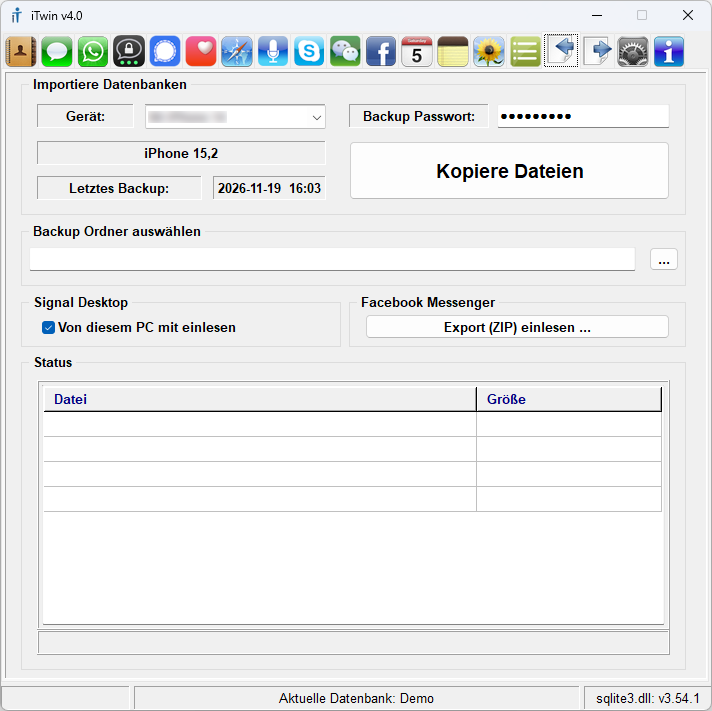
In iTwin, open the import page, tick “Import from this PC” under “Signal Desktop” and click “Copy files”. The iPhone backup is imported as usual at the same time.
Step 3: read and save chats
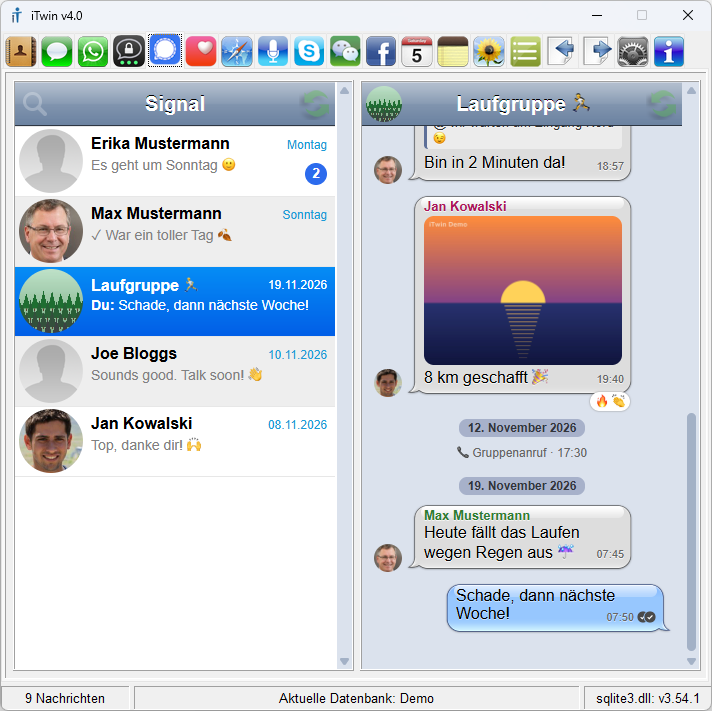
The Signal tab lists all chats and groups on the left and shows the conversation on the right. On the Export page you can save one or more chats as PDF, HTML or text.
Good to know
- Only about 45 days: Signal Desktop only receives the messages and media of roughly the last 45 days from the iPhone, so iTwin cannot show older chats either. Tip: keep Signal Desktop linked and import into iTwin regularly – each import is kept as a separate data folder.
- Everything stays local. iTwin reads the Signal Desktop data on your computer and sends nothing to the internet.
- Try it first: without a licence, 3 chats can be read and the demo data can be used in full. The full version unlocks all chats and the export.
The screenshots show the German interface; iTwin is available in 23 languages.