

Read locked notes from an iPhone backup
In the Notes app, individual notes can be locked with a password. iTwin can show these locked notes on your PC as well – provided two conditions are met.
Important
Locked notes are only included in encrypted backups. In an unencrypted backup they are missing completely – iTwin then only shows the normal notes.
What you need
- an encrypted iPhone backup and its backup password
- the password of the locked note – a separate password, independent of the backup password
Without both passwords, locked notes cannot be opened – not with iTwin either.
Step 1: create an encrypted backup
In iTunes or “Apple Devices”, tick “Encrypt local backup”, set a password and click “Back Up Now”. If encryption was already on, a new backup is enough. Details in the chapter Backing up your iPhone.
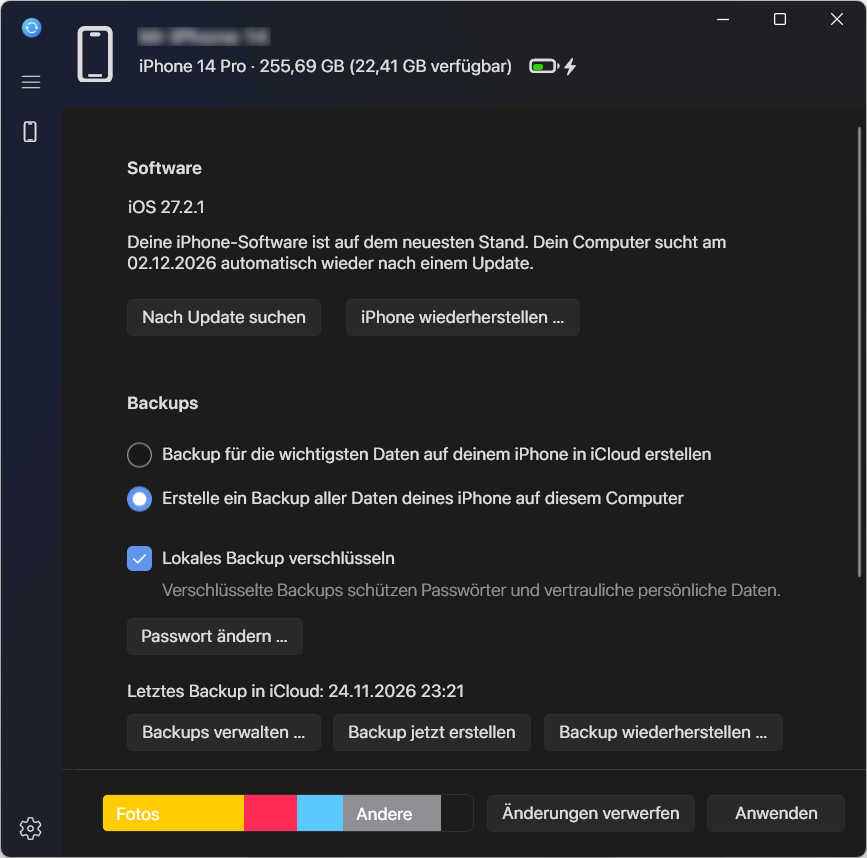
Step 2: import into iTwin – with the backup password
On the import page, enter the backup password and click “Copy files”. The password is only used for importing and is not stored.
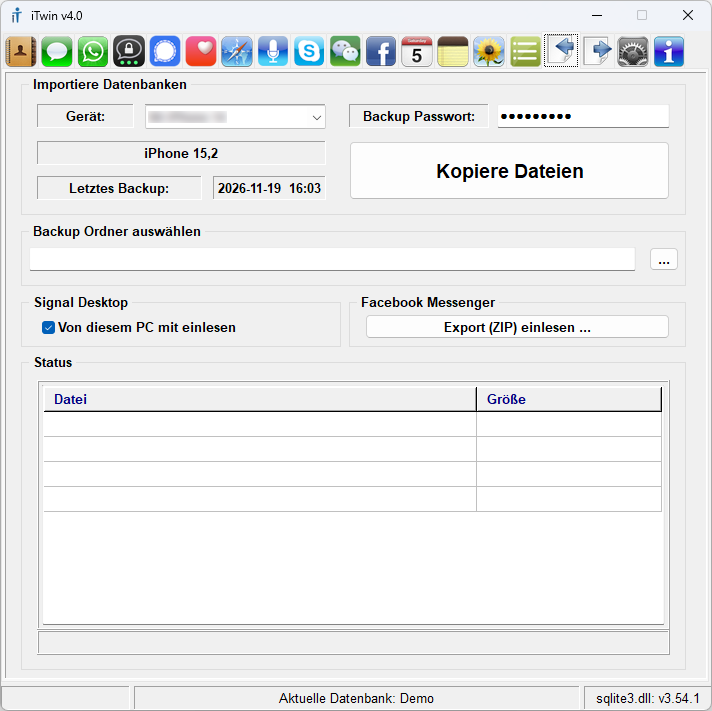
Step 3: open the locked note – with the note password
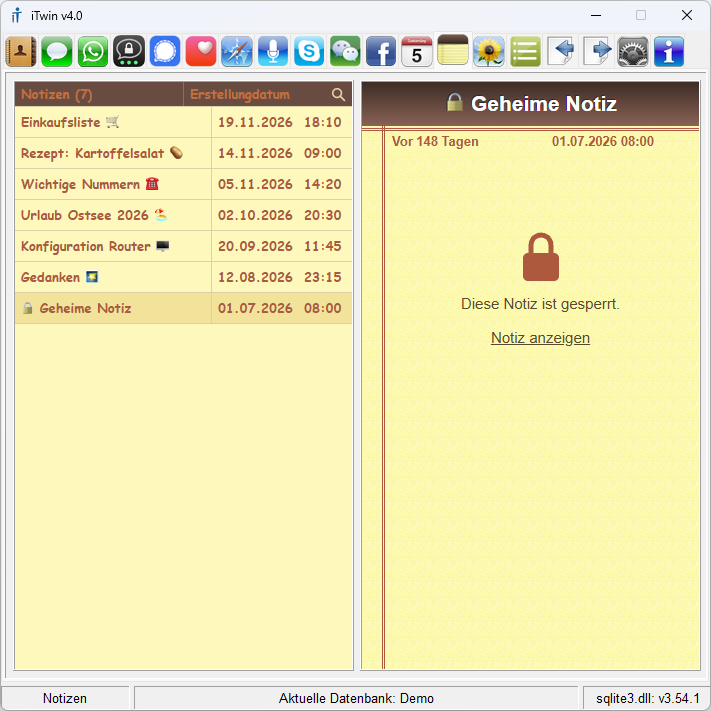
On the Notes tab, locked notes are shown with a padlock. Select the note – the right-hand side then says “This note is locked.” Click “Show note”.
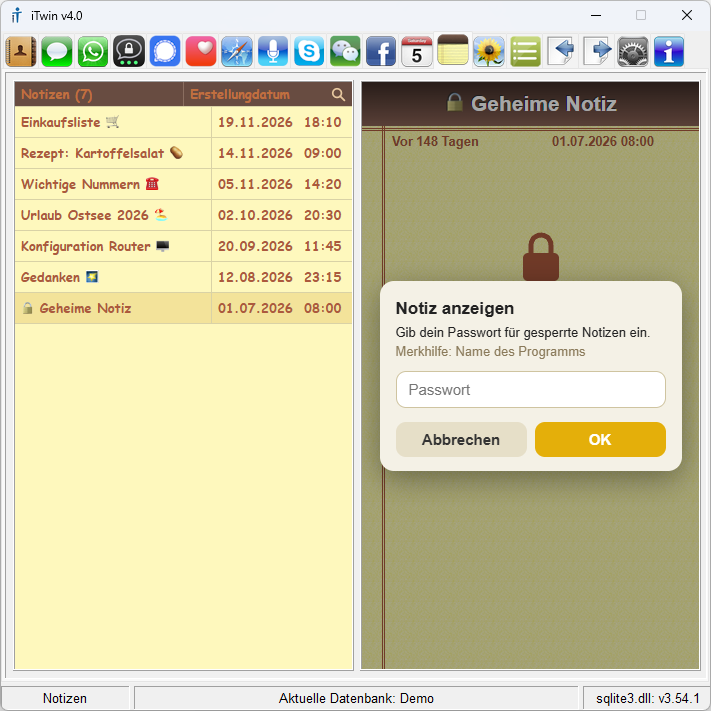
Enter the note's password and confirm with OK. If you set a password hint on the iPhone, iTwin shows it here. You can then read the note and export it like any other.
Good to know
- Forgot the backup password? It cannot be recovered. On the iPhone, Settings → General → Transfer or Reset iPhone → Reset → Reset All Settings removes the encryption; then create a new encrypted backup with a new password. Your data is kept.
- Forgot the note password? Then the note cannot be opened with iTwin either – that is exactly what the encryption is for.
- Encrypted backups contain even more: Health data and the call history are only included there too.
- Everything stays local. iTwin reads the backup, does not change it and sends nothing to the internet.
The screenshots show the German interface; iTwin is available in 23 languages.